
Are you ready to unlock the power of data for your WordPress site using the Layers Theme? Installing Google Analytics is your golden ticket to understanding your audience better and tailoring your content to meet their needs.
Imagine having the ability to see exactly how visitors interact with your site, which pages captivate them, and where you could improve. It’s like having a digital magnifying glass that reveals invaluable insights. In this guide, you’ll discover how to seamlessly install the Google Analytics tracking code on your WordPress site using the Layers Theme.
By the end, you’ll be equipped with the knowledge to make data-driven decisions that could elevate your site’s performance. Let’s dive in and transform your website into a well-oiled, data-informed machine!
Credit: taglab.net
Preparation Steps
First, visit the Google Analytics website. Sign up for an account. You’ll need a Google account to start. Follow the prompts. Enter your website details. Choose the right property settings. This includes your website name and URL.
Make sure to select the correct time zone. This ensures accurate tracking. Once done, click the Create button. Your account is now ready!
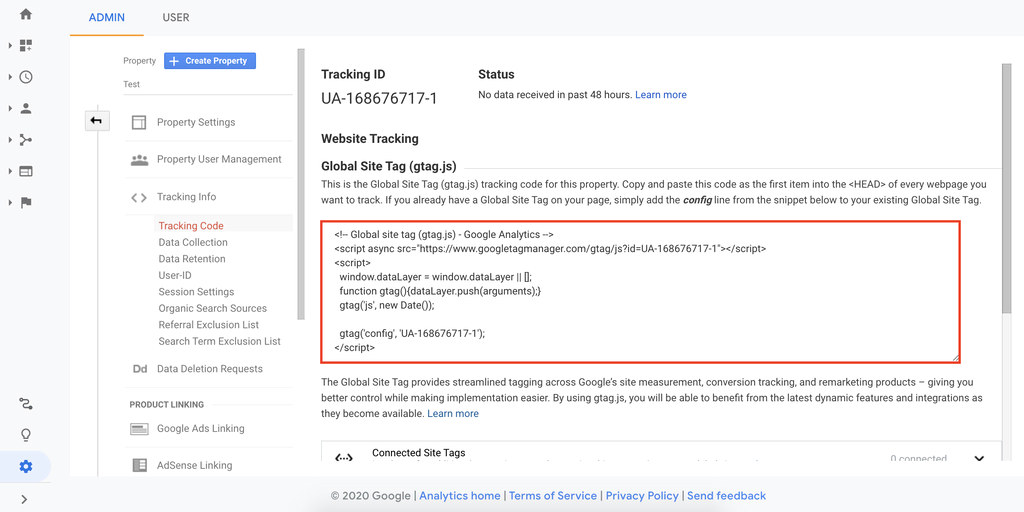
After account creation, you need a tracking code. This code is unique. It links your site to Google Analytics. Find it under the property settings tab. Look for the “Tracking Info” section. Click on “Tracking Code”. Copy the code snippet shown. This snippet is essential. It will be added to your WordPress site. Keep it safe and handy.
Credit: www.hostinger.com
Accessing WordPress Dashboard
Start by going to your WordPress site. Find the login page. Enter your username and password. Click the login button. You will see the WordPress dashboard. This is where you can make changes.
Look for the menu on the left side. Find the Appearance option. Click on it. Then choose Theme Settings. You can change your theme here. Look for options to add code. This is where you will paste the Google Analytics code.
Adding Tracking Code
First, open your WordPress dashboard. Find the Appearance menu. Click on Editor under it. On the right, you will see theme files. Look for the header.php file. This file holds the code for your site’s header.
Open the header.php file. Find the tag. Place your Google Analytics tracking code just before it. This code helps track visitors on your site. Once added, save your changes.
Now, your site has Google Analytics. It will start collecting visitor data. Check your Google Analytics account to see the data.
Verifying Installation
Check if your Google Analytics tracking code works. Open your WordPress Layers Theme. Visit the site where you installed the code. Use another browser or device if possible. Navigate the site for a few minutes. Wait for real-time data. This step ensures the code is active.
Use Real-time Reports
Real-time reports show live visitor activity. Open Google Analytics and go to the Real-Time section. View the number of active users. Check the pages they visit. Confirm that your site appears in these reports. This indicates correct code installation.
Check Tracking Status
Google Analytics can confirm tracking status. Go to the Admin section. Select Tracking Info, then Tracking Code. Look for a green check mark. This signifies proper installation. If there’s a red alert, revisit your setup. Ensure all steps were followed.
Troubleshooting Common Issues
Easily install Google Analytics tracking code in the WordPress Layers Theme by navigating to the header.php file. Insert your tracking code right before the closing tag. Save changes to ensure your site collects data effectively.
Tracking Code Errors
Sometimes, the Google Analytics code may not work. This can happen if the code is not placed correctly. It should be in the header or footer of your theme. Double-check the placement to ensure accuracy. Verify the code is active and not commented out. Use the Google Tag Assistant to check if the code is working. If errors persist, re-install the code from Google Analytics.
Theme Compatibility Issues
Some themes may not support Google Analytics well. Check if the Layers theme is up to date. An outdated theme can cause issues. Ensure the theme’s scripts do not block Google Analytics. Try using a plugin to add the tracking code. Plugins often help with compatibility issues. If problems continue, contact your theme’s support team. They might offer a solution.
Enhancing Analytics Usage
Google Analytics offers many features. You can track visitors easily. It helps you understand user behavior. You can see what pages they visit. Know how long they stay. Discover which links they click. This data is valuable. It guides your content strategy. Make better decisions with this information. Improve your website’s performance.
Utilize Google Analytics Features
Explore the analytics dashboard. Find insights about your audience. Check the traffic sources. Learn if visitors come from search engines. See if social media drives traffic. Understand your site’s bounce rate. Identify which pages need improvement. Use reports for planning your next steps.
Integrate With Other Tools
Google Analytics works well with other tools. Connect it with Google Ads. This helps track ad performance. You can also link with SEO tools. Gain more insights into your site’s visibility. Use these integrations for a complete view. Make informed decisions for your strategy.
Credit: ezsegment.com
Frequently Asked Questions
How Do I Add Google Analytics To Layers Theme?
To add Google Analytics to the Layers Theme, access your WordPress dashboard. Navigate to Appearance > Editor. Find the header.php file and paste your Google Analytics tracking code before the tag. Save the changes. Alternatively, use a plugin like “Insert Headers and Footers” for easier integration.
Is A Plugin Necessary For Tracking Code?
No, a plugin is not necessary. You can manually insert the tracking code into the header. php file. However, using a plugin like “Insert Headers and Footers” can simplify the process. It also reduces the risk of errors during manual insertion, especially for beginners.
Can I Install Google Analytics Without Coding?
Yes, you can install Google Analytics without coding by using a plugin. Plugins like “MonsterInsights” or “Insert Headers and Footers” allow you to add the tracking code easily. This method is user-friendly and ideal for those unfamiliar with editing theme files.
What Is The Purpose Of Google Analytics?
Google Analytics helps you track and analyze website traffic. It provides insights into user behavior, demographics, and site performance. This data is crucial for optimizing content and marketing strategies, enhancing user experience, and increasing conversions. It is an essential tool for website owners.
Conclusion
Installing Google Analytics on your WordPress Layers theme is easy. Follow the steps outlined here. Start by accessing your theme’s dashboard. Navigate to the settings. Add your Google Analytics tracking code. Save changes to apply the code. This lets you track visitor data.
Understand user behavior. Improve your site’s performance. Keep your analytics updated regularly. Stay informed about new features. Using analytics helps grow your website. Reach more users effectively. Now you can monitor your site’s success. Happy tracking!



